# Raios360 - Field Operations Management Platform
**One Platform. More Reliable Teams.**
**One platform for more reliable inspections, audits, field work, compliance, maintenance, and AI-powered reporting.**
Raios360 is the multi-tenant SaaS field operations platform that senior operations leaders run the business on. It leads with four things decision-makers care about: (1) built-in AI that drafts the report, flags the anomaly, and answers the operational question; (2) reliable data that stays accurate and available offline and reconciles when it matters; (3) enterprise-grade security with strict tenant isolation you can defend to your board and auditors; and (4) trust earned over years serving real businesses in the field. From task assignment to form collection, serial and lot tracking to board-ready reporting, Raios360 coordinates your entire mobile workforce.
## No-code builder
Build the field app your operation needs without code. An organization's own admins build three things, in the browser, on Raios360's own records:
- **Workflows**: a trigger and the steps that follow it — 29 triggers (task, form, approval, visit, location, ticket, metric, Solution, schedule and on-demand), 24 actions (notify, email, tasks, approvals, data lookup, create/update records, tickets, visits, notes, branch, wait, for each, parallel lanes, webhook, chat channel) and 14 ready-made templates. Guided builder or visual canvas; conditions tested against real submissions before going live; run limits; every run recorded.
- **Pages**: record pages and dashboards assembled from 24 block types (fields, joined fields, related lists, editable fields, data tables, KPIs, charts, formula KPIs, checklists, quick updates, embedded forms, action buttons, signatures, QR codes), published to the mobile app — also offline — with per-block visibility.
- **Metrics**: define a KPI once (7 types over 11 kinds of record) and reuse it on dashboards, pages and reports; recommended metrics for every organization and per industry; a metric crossing a threshold can start a workflow.
It is not a general-purpose app builder; a workflow reaches outside software only through a webhook you configure. Every building block is listed at https://raios360.com/no-code-builder
## Key Features
### Work Management
- **Projects**: Create and manage projects with custom statuses, priorities, and timelines. Link tasks, forms, and submissions for complete traceability. Project templates for recurring work.
- **Tasks**: Assign to individuals or teams with due dates. Full lifecycle: assign, accept, start, pause, complete, verify. SLA tracking with breach notifications. Task rework for quality control.
- **Forms**: Visual form builder with 50 field types including check-in location (GPS + timestamp proof). Version control, conditional logic, real-time validation. Data lookup fields for clients, products, serials, lots, databases. Barcode/QR scanning across products, serials, lots, and custom databases.
- **Submissions**: Approval workflows with multi-level chains. Full audit trails with metadata (device, location, network, duration). Resubmission workflow. Archive and export.
### Field Operations
- **Scheduled Visits**: Plan field visits to client locations. Purposes: sales, support, delivery, inspection, maintenance, follow-up. Calendar integration. Status tracking.
- **Geolocation Check-In/Out**: GPS-verified arrival/departure. Location + timestamp for compliance. Duration tracking, overdue detection. Visit outcome recording.
- **Attendance Tracking**: Clock in/out with GPS verification. Break management. Team dashboard. Geofencing support.
### Data Management
- **Client Database**: Contact info, multi-location branches, 15 custom field types, linked tasks/visits/submissions.
- **Product Catalog**: FMCG-ready. SKU, barcode, brand, category. Multiple price types (retail, wholesale, promotional, cost). Price groups. CSV import/export.
- **Serial Tracking**: Track serialized assets through their full lifecycle. Serial numbers with per-unit warranty tracking. Client and sales rep linking. Financial tracking (discount, tax, payment method). Buyer information capture. Supplier and delivery management.
- **Lot Tracking**: Manage batch and consumable goods with lot numbers, expiry dates, and quantity tracking. Link lots to products, clients, and form submissions.
- **Custom Databases**: Unlimited databases with custom schemas. Full-text search. Offline sync. Barcode lookup in forms.
### Reporting & Analytics
- **Report Builder**: Basic and advanced. Multi-form sources, cross-form joins. Aggregations (sum, avg, count, min, max, median). Calculated fields. AND/OR filters.
- **Chart Builder**: 8 types: bar, line, pie, donut, area, scatter, heatmap, table. Live preview. Custom styling.
- **Export**: PDF with company branding, Excel/CSV, scheduled delivery, report archive.
- **Dashboards**: Real-time KPIs, task completion rates, submission trends, visit statistics.
### AI & Integration
- **AI Analytics Assistant**: Natural language data queries. Auto chart/table generation. Conversation history. Supports OpenAI, Anthropic, Google AI, Azure. Organization's own API key.
- **MCP Server**: 26 tools (12 read, 14 write). Permission-bounded. 7 schema resources. 5 prompt templates. Connect Claude Desktop, IDE plugins, custom apps.
- **API Access**: REST API for submissions and reports. API keys with scopes and quotas. Audit logging.
### Team Management
- **Users**: Email invites, multi-org support, admin password reset, activity tracking.
- **Groups**: Hierarchical structure, group leaders with scoped access.
- **Roles & Permissions**: 7 built-in roles. Custom roles. 162 permission combinations (18 resources x 9 actions). Quick and Advanced permission pickers.
### Communication
- **Messaging**: Direct messaging, tap-to-acknowledge, read receipts, threads, channels.
- **Push Notifications**: Task, submission, visit, and message alerts. Multi-device. Deep linking.
- **Notification Center**: Centralized inbox, read/unread, date grouping.
## Platform
- Multi-tenant with complete data isolation
- Personal data behind controlled access: sensitive IDs masked, erase on request
- Owner-only settings for lasting changes, every change logged; regional access for regional managers
- Each office keeps its own time zone; dates and report periods follow the office's working day
- Module feature toggles (Clients, Products, Serials, Lots, Databases, Workflows)
- Self-service registration with trial period
- Cross-platform: Flutter for web, iOS, Android
- Full offline mobile support with automatic sync
- Human-readable IDs (Dated, Org-Prefixed, Simple formats)
## Applications
- **Web App**: Dashboard, project/task management, form builder, submission review, visit scheduling, data management, report builder, team admin, settings.
- **Mobile App**: Task execution, form filling with photos/signatures/barcodes, GPS check-in, attendance, product/serial browser, offline mode, messaging.
- **Admin Portal**: Organization management, module toggles, user admin, templates, subscription plans, platform analytics.
## Industries
FMCG & Retail, Field Services, Healthcare, Construction, Logistics, Agriculture, Utilities, Real Estate, Local Government, Security Teams.
## Solutions (add-ons)
Ready-made workflows, switched on per organization by the Raios360 team; some carry a fee of their own.
- **ID Document Capture**: Photograph the ID. The record fills itself in. https://raios360.com/solutions/id-document-capture
- **Leads**: From first contact to client, without retyping a thing. https://raios360.com/solutions/leads
- **On-Shelf Availability**: Know which must-carry products are on the shelf, store by store. https://raios360.com/solutions/on-shelf-availability
- **Paper Form Capture**: Keep the paper. Lose the re-keying. https://raios360.com/solutions/paper-form-capture
- **Personnel Monitoring**: A work order opens the gate. A badge alone does not. https://raios360.com/solutions/personnel-monitoring
- **Public Feedback Survey**: A QR code at the counter, and every answer in a dashboard. https://raios360.com/solutions/public-feedback-survey
- **Visitor Management**: Every visitor signed in, compared, and approved by a person. https://raios360.com/solutions/visitor-management
## Pricing
- **Free Trial**: 30 days, all features, unlimited users, no credit card required
- **Standard**: $18/user/month ($15/user/month billed annually — save 17%)
## Links
- Register: https://app.raios360.com/register
- Login: https://app.raios360.com/login
- Website: https://raios360.com
- Product Brochure (PDF): https://raios360.com/raios360-brochure.pdf
Build the field app your operation needs — without code
Workflows, pages and metrics, built by your own admins in the browser — on the same tasks, visits, forms and records your field team already creates.
30 days free · No credit card required
Raios360’s no-code builder has three parts. Workflows start the next step by themselves when something happens in the field. Pages put the fields, history and actions a person needs on one screen, on the web and in the mobile app. Metrics define each KPI once, so the number on the dashboard, the record page and the report is the same number.
Workflows
When something happens, the next step happens by itself.
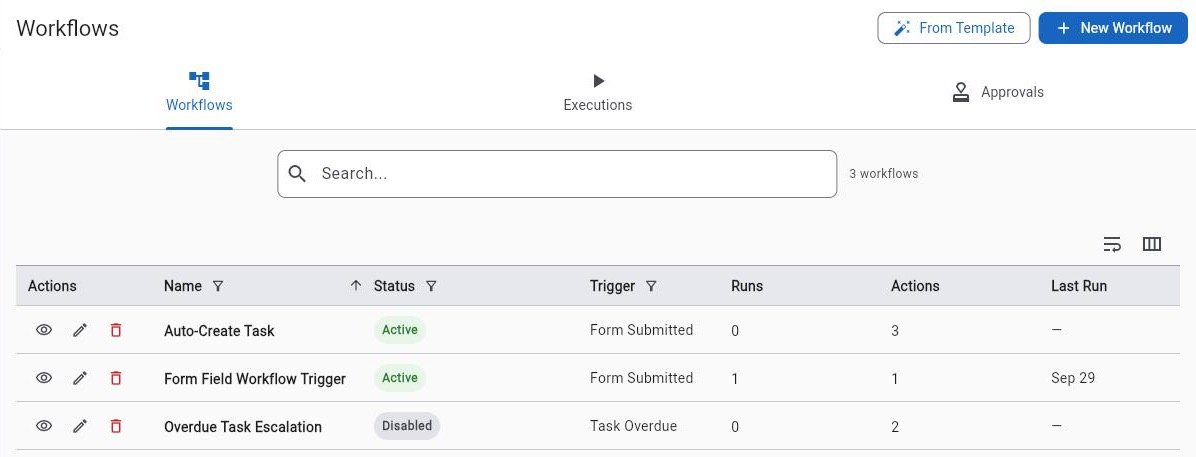
A workflow is a trigger and the steps that follow it. Nobody has to remember to chase the missed visit, escalate the overdue task or tell the manager about the off-site check-in — the workflow does it, every time, and records that it did.
29 triggers, 24 actions and 14 ready-made templates
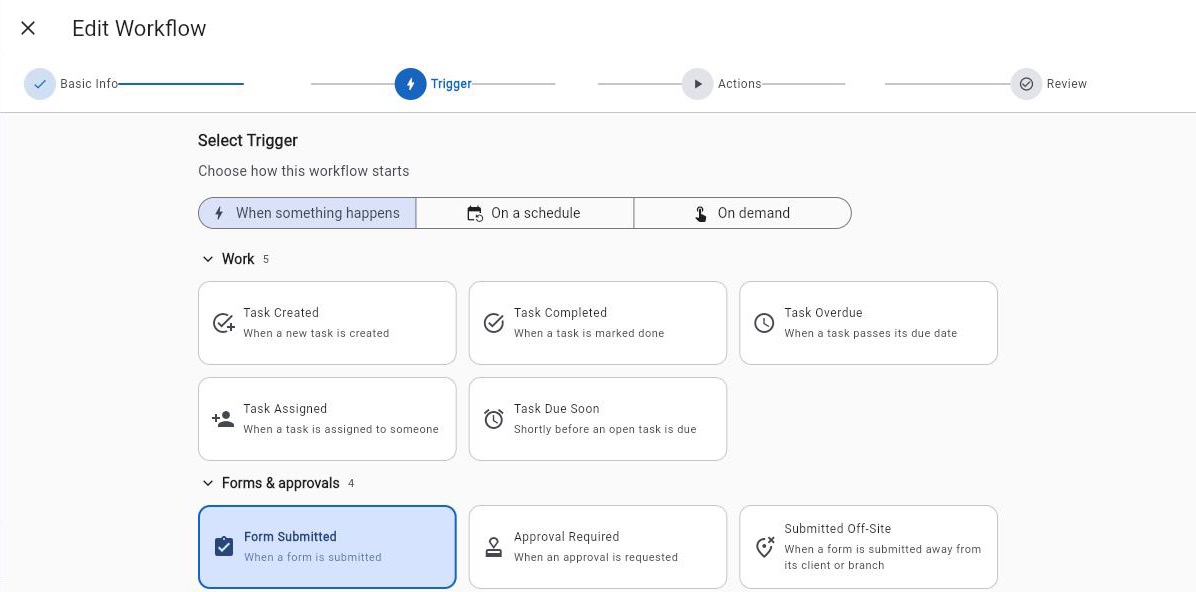
- Choose how it starts: when something happens, on a schedule, or on demand from a button
- Notify, email, create or assign a task, ask for approval, look up a record, update a field, create a ticket or a visit, add a note
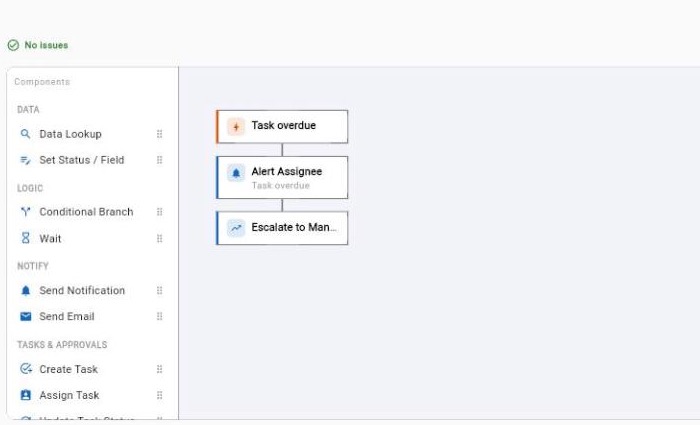
- Branch on an answer, wait, repeat for each line item, or run two lanes at the same time — a failing lane never stops the other
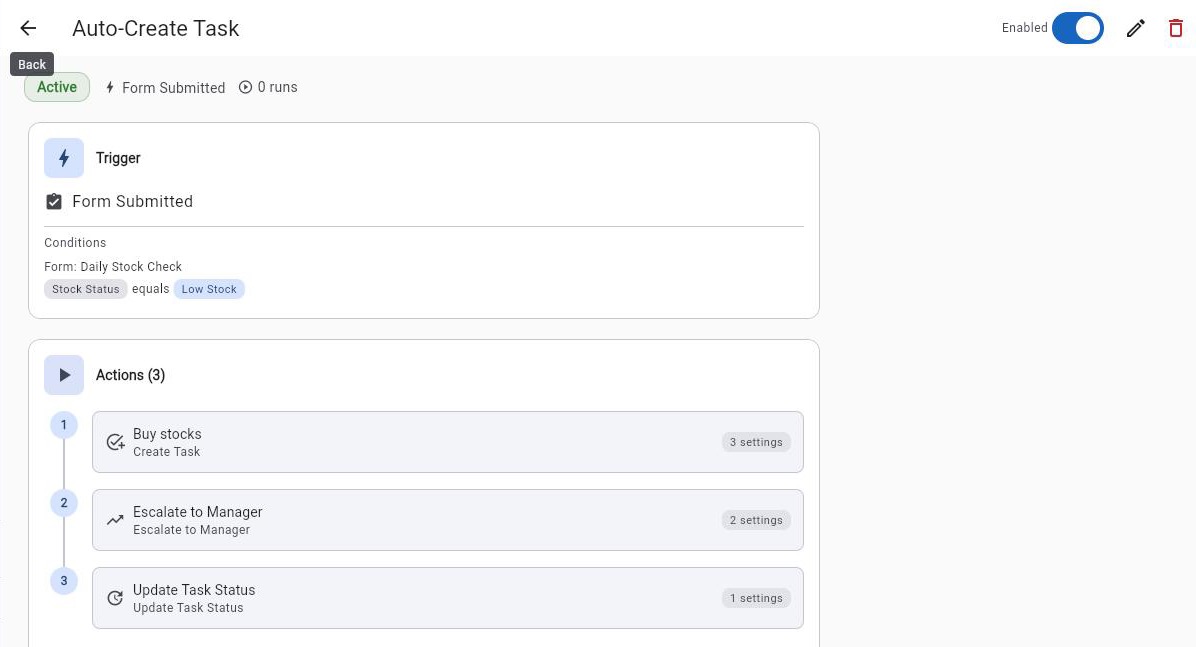
- Test the conditions against your real recent submissions before switching it on, and see every run, step by step, on the Executions tab
- A run limit per person, record or workflow, so one busy hour does not become a flood of alerts
Pages
The exact screen your team needs, from blocks.
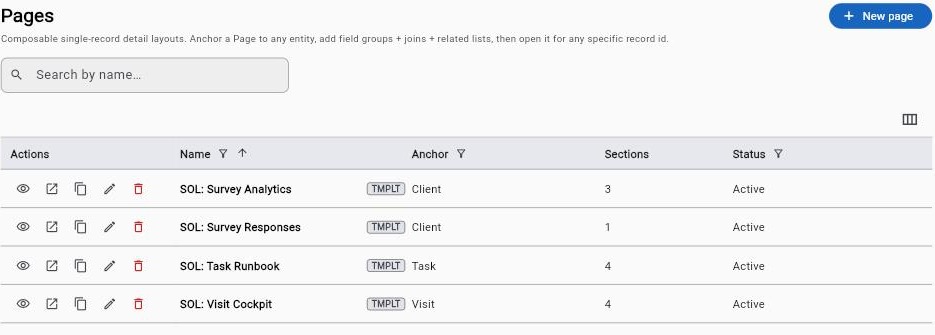
A page is a screen you assemble. A record page shows one client, visit, task, submission or lead with everything that belongs to it; a dashboard brings KPIs, charts and rosters together. Publish it, and the field team sees the same page in the mobile app — even offline.
24 block types for record pages and dashboards
- Fields from the record and from the records it links to, related lists, editable fields and data tables
- KPIs, charts and metrics from your Metrics library, next to the record they describe
- Buttons that fill a form with the record already filled in, change its status, open a related screen, or run a workflow
- Checklists, quick updates and signatures, so the page is where the work gets done rather than where it gets read
- Choose per block whether it shows everywhere, on the web and in print only, or in the mobile app only
Metrics
Define a KPI once. Use it everywhere.
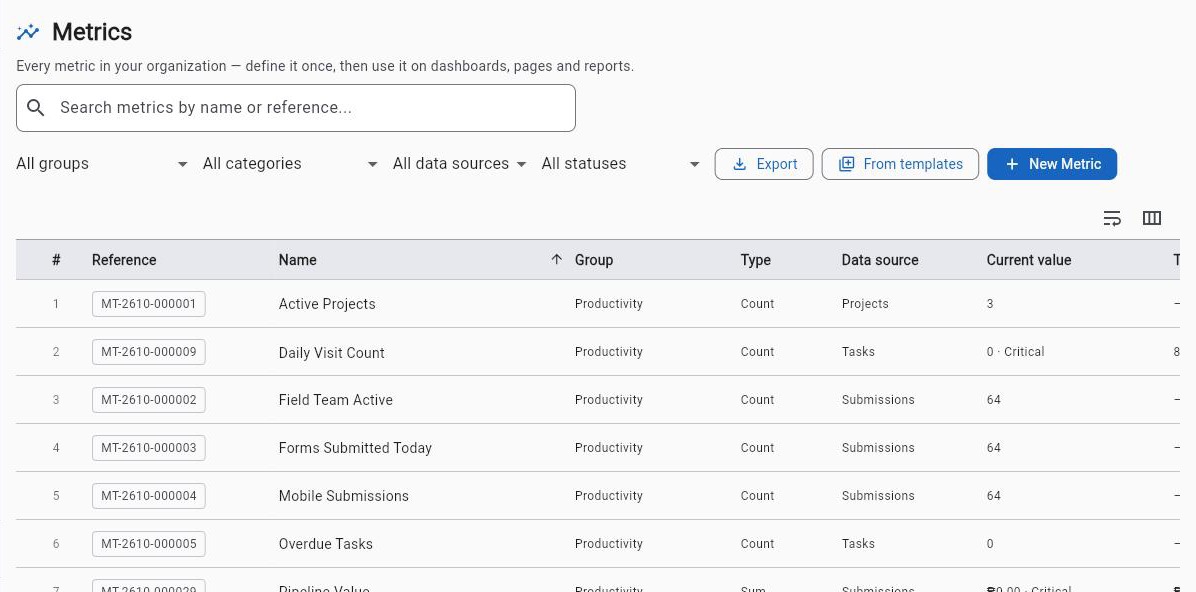
A metric says what to count, sum or average, from which records, over which period, against which target. Define it once in the Metrics library, and the same number appears on the dashboard, on the record page and in the report — in your own currency.
7 metric types over 11 kinds of record
- Count, sum, average, percentage, ratio, trend and comparison
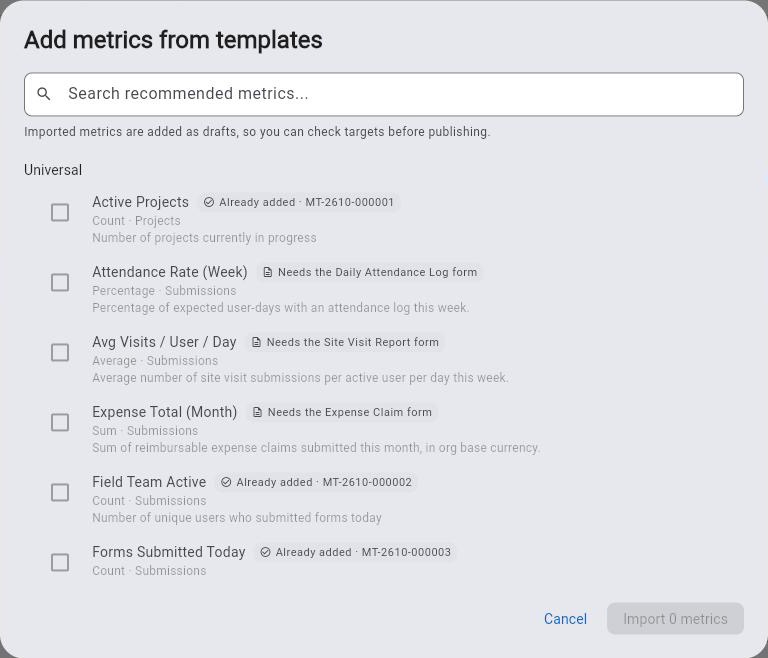
- Start from recommended metrics — a universal set and your industry's — imported as drafts so you can check the target first
- A template that needs a form you do not have yet says so, instead of importing a metric that could never fill
- When a metric turns Warning or Critical, or crosses a number you set, it can start a workflow — once per crossing
Every building block
What you build with, by name
Every trigger, action, template, metric and page block in the product today. Items marked with a Solution's name appear once that Solution is installed.
Workflow triggers
Start a workflow from the moment that matters
29 triggers — an event, the clock, or a person pressing a button
Work
- Task Created
- Task Completed
- Task Overdue
- Task Assigned
- Task Due Soon
Forms & approvals
- Form Submitted
- Approval Required
- Submission Rejected
- Submitted Off-Site
Visits & location
- Visit Completed
- Checked In Off-Site
- Visit Missed
Tickets & metrics
- Escalation
- Ticket Created
- Metric Alert
With a Solution installed
- Lead Created· Leads
- Lead Stage Changed· Leads
- Lead Inactive· Leads
- Opportunity Created· Leads
- Lead Converted· Leads
- Visitor Approved / Rejected· Visitor Management
- Visitor Still Inside· Visitor Management
- Visitor ID Not Matched· Visitor Management
- Personnel Signed In / Out· Personnel Monitoring
- Personnel Still Inside· Personnel Monitoring
- ID Document Read· ID Document Capture
- Paper Form Needs Review· Paper Form Capture
On a schedule
- Scheduled
On demand
- Manual
Workflow actions
Then notify, create, update, branch or wait
24 actions, each one a step you add, not code you write
Notify
- Send Notification
- Send Email
- Escalate to Manager
Tasks & approvals
- Create Task
- Assign Task
- Update Task Status
- Request Approval
Records & data
- Data Lookup
- Set Status / Field
- Create Record
- Update Record
- Create Ticket
- Create Visit
- Add Note
Flow
- Conditional Branch
- Wait
- For Each (repeating item)
- Run at the Same Time
Integrations
- Call Webhook
- Post to Chat Channel
With a Solution installed
- Assign Lead Owners· Leads
- Set Lead Office· Leads
- Set Lead Stage· Leads
- Notify Host· Visitor Management
Any step can be set to continue if it fails, and a run limit per person, record or workflow stops one busy hour from becoming a flood of alerts. Post to Chat Channel posts into a Raios360 messaging channel; Call Webhook reaches an outside system.
Workflow templates
Or start from one that already works
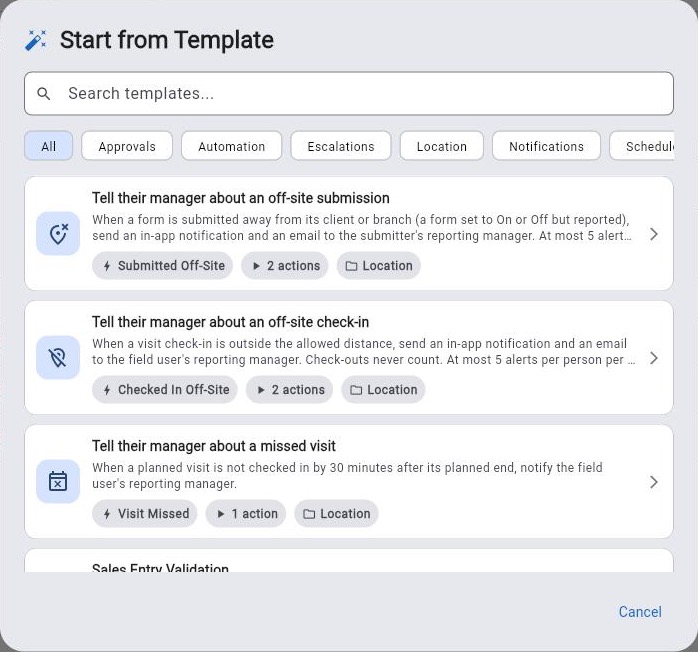
14 ready-made workflows, each editable once added
Tell their manager about an off-site submissionLocation
A form submitted away from its client or branch notifies and emails the submitter's reporting manager, at most five alerts per person per day.
Tell their manager about an off-site check-inLocation
A visit check-in outside the allowed distance notifies and emails the field user's reporting manager. Check-outs never count.
Tell their manager about a missed visitLocation
A planned visit not checked in by 30 minutes after its planned end notifies the field user's reporting manager.
Sales Entry ValidationValidation
Checks a sale's serial number and warranty against your Serials database and sets the status: Approved when both match, otherwise For Approval.
Task Approval FlowApprovals
A completed task asks a manager to approve it before it is marked verified.
Form Submission ReviewApprovals
Routes a submission to a reviewer and tells the submitter the outcome.
Task Assignment NotificationNotifications
Tells a team member about a task the moment it is assigned to them.
Visit Completion AlertNotifications
Tells managers when a field visit is completed.
Form Submission EmailNotifications
Emails a summary to the people you choose whenever a form is submitted.
Form Value AlertAutomation
When an answer has a specific value, notifies managers and creates a follow-up task.
Overdue Task EscalationEscalations
Escalates an overdue task to a manager and creates a follow-up task.
Create Task from FormAutomation
Creates a follow-up task when a specific form is submitted.
Webhook on Task CompleteAutomation
Calls an external system when a task is completed.
Daily Status DigestScheduled
Emails managers a daily digest of pending and overdue work.
Metrics
Define a KPI once, use it everywhere
7 metric types over 11 kinds of record, plus recommended metrics to start from
What a metric can measure
- Count
- Sum
- Average
- Percentage
- Ratio
- Trend
- Comparison
Which records it reads
- Submissions
- Tasks
- Projects
- Visits
- Tickets
- Sales
- Clients
- Users
- Attendance
- Leads· Leads
- Opportunities· Leads
Recommended · For every organization
- Task Completion Rate
- Overdue Tasks
- Forms Submitted Today
- Active Projects
- Field Team Active
- Attendance Rate (Week)
- Avg Visits / User / Day
- Hours On-Site (Week)
- Expense Total (Month)
Recommended · FMCG & retail
- Store Visit Completion
- Out-of-Stock Rate
- Promotion Execution
- Merchandising Compliance
- Stores Visited Today
Recommended · Field services
- First-Time Fix Rate
- Work Orders Completed Today
- Open Work Orders
- Avg Response Time
Recommended · Construction
- Safety Compliance Rate
- Active Job Sites
- Open Punch List Items
- Daily Reports Submitted
Recommended metrics are a starting point: a sample from the universal set and three of the industry sets is shown. Imported metrics arrive as drafts so you can check the target before anyone sees them.
Pages
Assemble the screen from blocks
24 block types for record pages and dashboards
- Record page — One screen per record — a client, a branch, a task, a visit, a submission, a lead or a row in your own database — with its fields, its history and the actions that move it on.
- Dashboard — A live board of KPIs, charts, rosters and tables across your organization, not tied to a single record.
The record's own data
- Field
- Joined field
- Related list
- Editable field
- Data table
- Sales vs target
Numbers and charts
- Organization metric
- Related-records KPI
- Related-records KPIs
- Formula KPI
- Chart
- Split-bar sections
- OSA matrix· On-Shelf Availability
- Lead report· Leads
Getting work done
- Action buttons
- Embedded form
- Checklist
- Quick update
- Signature
Presentation
- Text and headings
- Image
- Divider
- Current date and time
- QR code
What a page button can do
- Fill a form — opens the form with this record already filled in
- Change status — moves the record on in one tap
- Go to a screen — jumps to a related record or another page
- Run a workflow — starts an on-demand workflow for this record
Where each block shows
- Everywhere
- Web and print only
- Mobile app only
What it does not do
- It is not a general-purpose app builder. It builds on Raios360's own records — tasks, visits, forms, clients, products, leads and your own databases
- A workflow reaches software outside Raios360 only through a webhook you configure; there is no built-in connector catalogue. Post to Chat Channel posts into a Raios360 messaging channel, not an outside chat app
- A workflow does what you set it up to do, and only while it is switched on. It does not decide on its own what to do next
- Running a workflow from a page button is for managers and administrators, not every user
Want the builder already filled in for a specific job? See the Solutions — each one installs its own starter workflows, pages and metrics.